
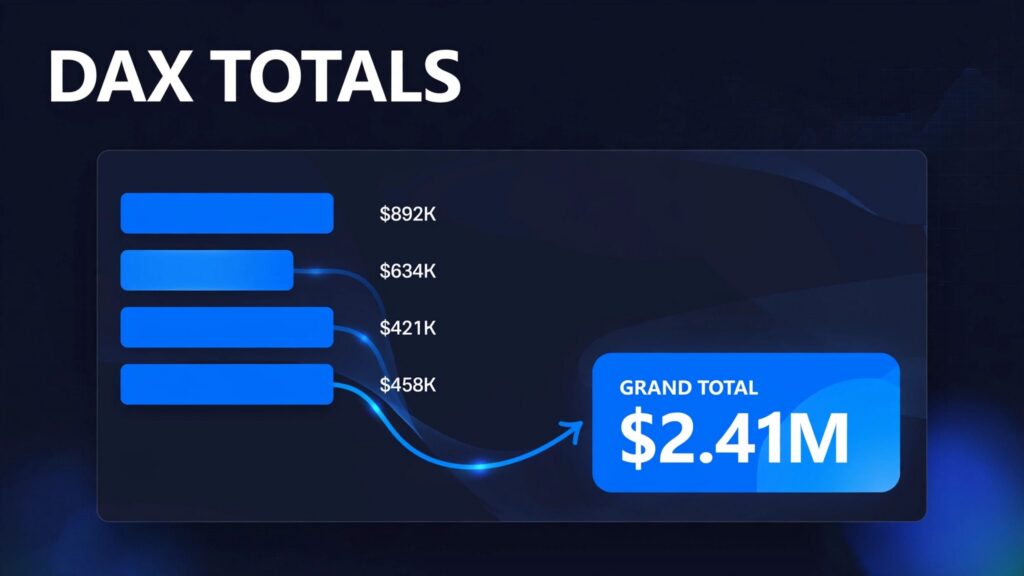
Power BI totals often differ from the rows above because Power BI recalculates the measure in the total row’s filter context. It doesn’t automatically add the displayed results.
A wrong total is often a valid calculation at a different grain, so identify what the total should mean before changing the DAX. The right fix depends on the business definition: overall average, unique orders, and category-level incentives require different calculations.
Key Takeaways
- A grand total retains applicable slicers and filters, but the total row doesn’t inherit each category’s row filter.
- Measure totals should follow the business rule: iterate at the required grain, then calculate the sum of category results.
- In a matrix visual, formatting controls whether subtotals appear. It doesn’t change their calculation.
Why Power BI Totals Differ From Visible Rows
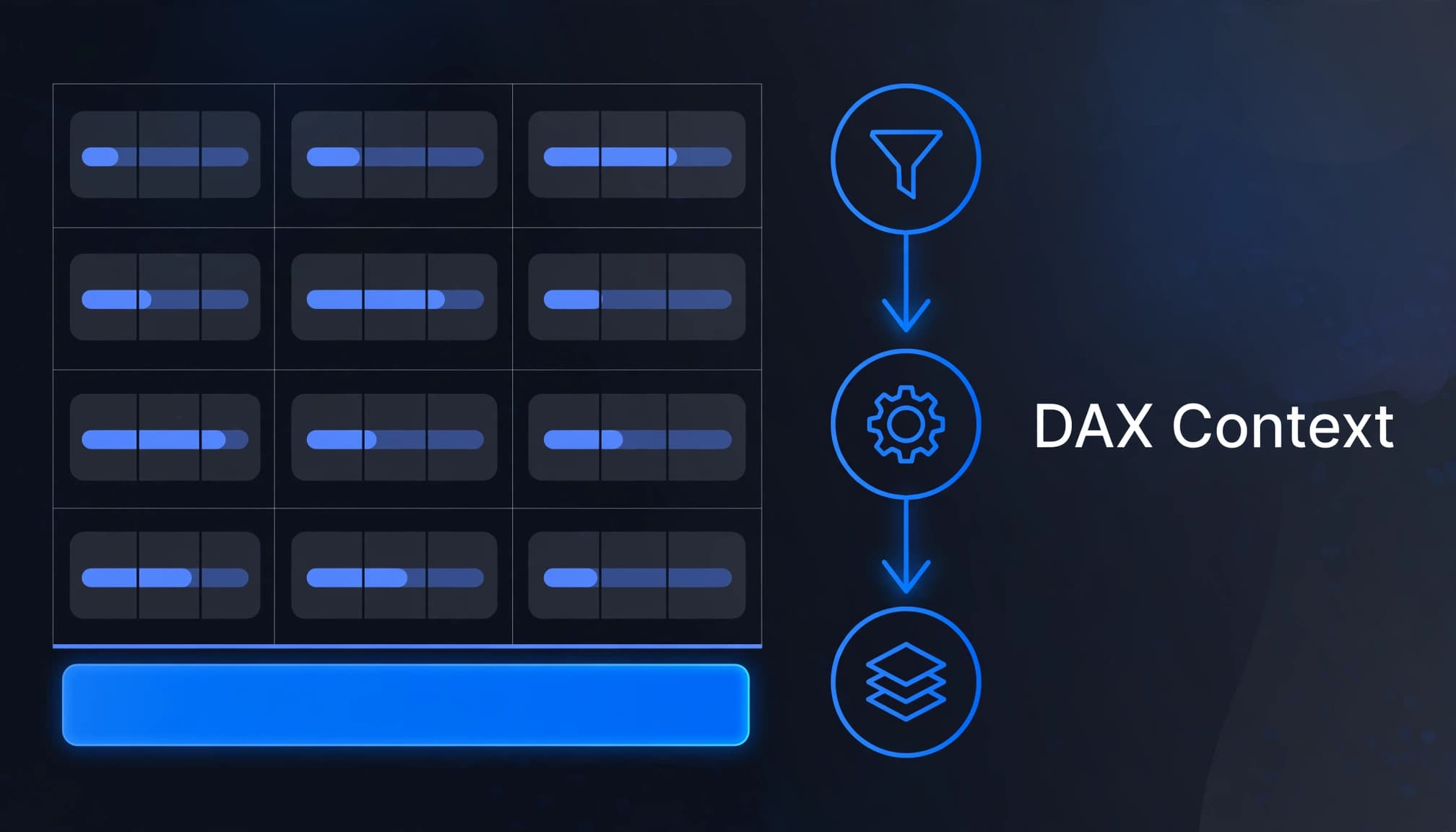
Each cell has its own filter context
A product row evaluates a measure with that product’s filter. For example, the Orders calculation beside Mountain Tire Tube includes only orders associated with that product.
The grand total evaluates the same formula without the individual product filter, while date slicers, report filters, security rules, and other restrictions still apply.
A wrong total may look incorrect, but it can answer a different question because its context uses different filters.
Non-additive measures need different totals
Revenue can aggregate across categories, but distinct order counts and averages often can’t.
In Purple Frog’s AdventureWorks example, the overall average order value is 486.09: 29,358,677.22 divided by 60,398. The category-level average values sum to 1,919.17, which answers a different question.
Aggregation grain also matters: one order containing a bike and helmet counts in both categories but only once overall.
Summing category-level distinct counts changes the metric into order-category occurrences. It no longer measures unique orders overall.
Debug DAX Context Before Rewriting the Measure
Isolate the calculation and its inputs
Use SUMMARIZE to create a temporary diagnostic table with category, numerator, and denominator values. Add the measure to a card under matching filters. Use this table for investigation, not automatically as a production-measure pattern.
If the card matches the grand total, both are evaluating the same filter state. Compare category results, subtotals, and the grand total against the intended aggregation rule.
For a ratio, expose both inputs. For a threshold calculation, expose the amount being tested. This shows whether the discrepancy comes from arithmetic, filtering, or calculation grain.
Inspect relationships and filter changes
Use dimension fields for grouping, then inspect active relationships, cardinality, and filter direction. Prefer one-to-many relationships with single-direction filtering where the model permits.
Also inspect CALCULATE, ALL, and REMOVEFILTERS. CALCULATE can replace existing filters on affected columns; it doesn’t necessarily remove every filter.
Iterators introduce row-level evaluation. When an iterator evaluates an existing measure, the engine converts that row into filters.
Our guidance on trusted Fabric semantic models addresses shared KPI definitions and filter paths in a semantic model. Fixing those foundations prevents inconsistent calculations across reports.
DAX Fixes for Sales, Averages, and Thresholds
Keep additive sales and weighted averages simple
At transaction grain, a simple sum is the right aggregation:
Total Sales = SUM(Sales[SalesAmount])
For the order-value ratio, use:
Average Order Value = DIVIDE([Total Sales], [Total Orders])
This calculates the overall average correctly at each level. An equally weighted category result gives every category the same weight, regardless of order volume.
If leadership wants each category to carry equal weight, name that KPI accordingly and use AVERAGEX over category values. That’s a separate KPI.
Evaluate thresholds at the required grain
A threshold measure such as IF([Total Sales] > 1000000, [Total Sales]) tests the overall result independently, while categories and subtotals may be evaluated at different levels. The measure can pass at the overall result even when individual categories don’t.
To add only qualifying categories:
Qualified Category Sales =
SUMX(
    VALUES('Product Category'[Category]),
    VAR CategorySales = [Total Sales]
    RETURN
        IF(CategorySales > 1000000, CategorySales)
)
Here, [Total Sales] evaluates separately for each category before the qualifying results are added to the sum.
The same principle applies to incentives. A five-percent calculation on 250,000 returns 12,500. However, separately calculated qualifying incentives of 4,500 and 5,000 total 9,500. Choose the grain specified by the compensation policy.
Fix Distinct-Count Totals Without Changing Their Meaning
For unique orders, define [Total Orders] with DISTINCTCOUNT on the sales order number.
In the AdventureWorks teaching example, 25,164 overall distinct orders becomes 37,888 when category-level counts are added. Both figures can be valid: the first counts unique orders, while the second adds category counts. Use that sum only when it’s the requested measure.
Use a separately named measure when category addition is required:
Orders by Category =
IF(
    HASONEVALUE('Product Category'[Category]),
    [Total Orders],
    SUMX(
        VALUES('Product Category'[Category]),
        [Total Orders]
    )
)
VALUES supplies one iteration per category. Referencing [Total Orders] applies each category’s filter through context transition.
However, HASONEVALUE detects one distinct value, not a visual’s hierarchy level. A slicer can make it true at the grand total. Use ISINSCOPE when the branch must detect a displayed hierarchy level.
Rounded category counts of 16,000, 13,000, and 6,000 total 35,000, so they can’t validate an exact 37,888 result. Reconcile using unrounded values.
Avoid copying complex iterator patterns without model data. One unresolved community example using an iterator over a seller table produced 1,568,388,256.42 instead of an expected 1,064,475. The response requested a PBIX or dummy data because the expression alone couldn’t establish the model’s behavior.
Separate Aggregation Settings From Matrix Formatting
Column settings differ from explicit DAX formulas
Microsoft’s Power BI aggregation documentation lists Sum, Average, Minimum, Maximum, Count (Not Blanks), Count (Distinct), Standard deviation, Variance, median, and Do not summarize.
The example results include Sum 750, Average 125, Maximum 150, Minimum 100, nonblank count 6, distinct count 3, and median 125. The six numeric values include two occurrences each of 100, 125, and 150.
The median is the middle value after sorting the data. Standard deviation describes how spread out the values are.
For a raw numeric column, the aggregation setting controls how Power BI displays its values. Choose Do not summarize to show each value without combining it.
An explicit measure uses a defined DAX formula, so the Do not summarize column setting doesn’t apply. Report-only users can’t change a column’s data type or default summarization; those edits require model-editing permission.
Formatting doesn’t repair arithmetic
In a matrix visual, formatting controls cover column subtotals, row subtotals, and the row grand total. Other subtotal options include value backgrounds and formatting applied to labels, though pane labels vary by release.
Disable totals when they aren’t meaningful. Changing their visibility or appearance won’t alter DAX evaluation.
A “too many values, not showing all data” warning indicates visual data reduction, often through an exclamation icon. Treat it as a display limitation, not proof that the arithmetic is wrong.
Choose Between Visual Calculations and a Card
Use this decision table to match the calculation to its purpose.
| Required result | Appropriate approach |
|---|---|
| Overall sales | Additive SUM calculation |
| Overall average or percentage | Recalculate numerator divided by denominator |
| Combined category-level outcomes | SUMX over the required category grain |
| One overall KPI | Card with matching filters |
| Calculation tied to displayed visual results | Visual calculation |
| Hide irrelevant totals | Matrix formatting |
A proposed “sum visible rows” toggle could help some scenarios. However, it would misstate unique orders and weighted averages if applied indiscriminately.
Microsoft’s visual calculations overview describes calculations that operate on the visual matrix. Visual calculations are useful when the result should aggregate displayed values and its aggregation belongs to the visual, not a reusable semantic-model measure.
Stacked columns can appear correct because their segment heights add together. That doesn’t prove the overall distinct count or ratio should equal the stack. Compare calculation grain and filters before treating chart behavior as the benchmark.
Fix the Semantic Model Before Scaling Fabric

Moving a report to Fabric won’t repair an undefined KPI. Before migration, validate the business rules behind each measure in the semantic model. Preserve tested definitions while improving the architecture.
Move stable transformations upstream where practical. However, Power Query grouping changes data grain and removes fields outside the grouped columns and calculations. Premature aggregation can prevent accurate distinct counts later.
For performance, iterate over the smallest table that expresses the business rule. Our Power BI performance tuning guidance covers Performance Analyzer and DAX Studio for identifying expensive queries.
At Spargent, our Microsoft Fabric consulting services support U.S. mid-market and enterprise companies, with or without internal analytics teams. We design, implement, migrate, optimize, and support solutions across the data lifecycle.
Our work covers ingestion, Data Factory pipelines, Dataflows Gen2, Lakehouse, Warehouse, OneLake, Power BI integration, semantic models, governance, Real-Time Intelligence, and managed support. We connect model quality and Fabric optimization to faster reporting, less Excel fragmentation, better governance, capacity planning, and cost control.
Our delivery is built for U.S. companies and supported by senior Microsoft Fabric specialists in Europe. Clear communication and an efficient European cost structure help companies access senior expertise without requiring every specialist role to be a U.S.-based hire.
Customer Success: Dentsu’s Faster Data Replication
Microsoft’s Dentsu customer story reports 55% faster data replication with Microsoft Fabric. That figure concerns data movement, not whether Power BI totals follow the intended DAX logic.
These outcomes need separate acceptance criteria. Platform performance affects data delivery, while DAX context determines how measures calculate detail rows and totals. Faster replication doesn’t correct an aggregation or make a total match visible rows by itself. Teams should evaluate data movement against platform goals and test each measure against its business rule. That distinction keeps a reported infrastructure improvement from being treated as evidence that calculations are correct.
Frequently Asked Questions
Can I force a total to sum visible rows?
Only when that operation matches the metric. Use an iterator at the intended grain or an appropriate visual calculation. Adding visible rows can double-count orders and distort an average, so document what the resulting measure means.
Will Microsoft Fabric migration fix incorrect totals?
Migration won’t change DAX filter behavior. Include measure validation in migration tests for category rows, subtotals, grand totals, slicers, and security roles. Compare business definitions as well as numbers, especially when replacing fragmented Excel reports.
Make the Total Match the Business Rule
Reliable measure totals depend on the correct calculation grain and clear KPI definitions in a governed semantic model. Preserve weighted averages and unique counts, and iterate categories only when the business rule requires adding category results.
If inconsistent KPIs are slowing reporting modernization, Book a Microsoft Fabric Discovery Call with our team. We’ll review your current environment and identify the next step for trusted reporting and governed semantic models.
